Install the AzManager extension on Chrome
Just 5 steps and about 2 minutes. No unzipping, no complicated skills needed.
- Google Chrome
- Version 1.1.0
- About 2 minutes
The screenshots show Chrome in Vietnamese. In English, look for Extensions → Manage Extensions, Developer mode and Drop to install; they are in the same place.
Download the AzManager extension
Click the button below to download azManager-v1.1.0.zip. It is usually saved to your Downloads folder. No need to unzip it.
Open the Extensions page
In Chrome, click the ⋮ menu in the top-right corner, then Extensions → Manage Extensions. Or copy the address below and paste it into the address bar.
chrome://extensions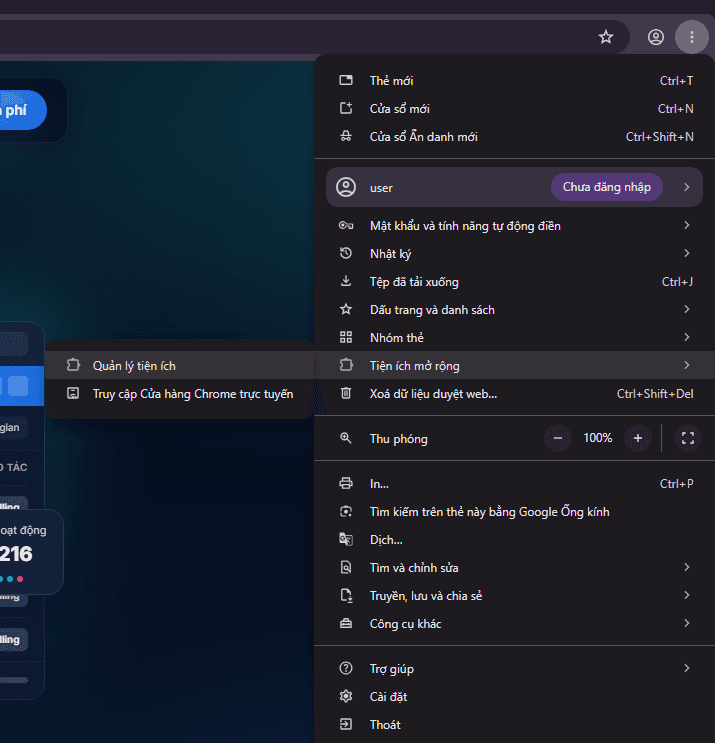
Turn on Developer mode
In the top-right corner of the Extensions page, switch Developer mode on.

Drag the file onto the Extensions page
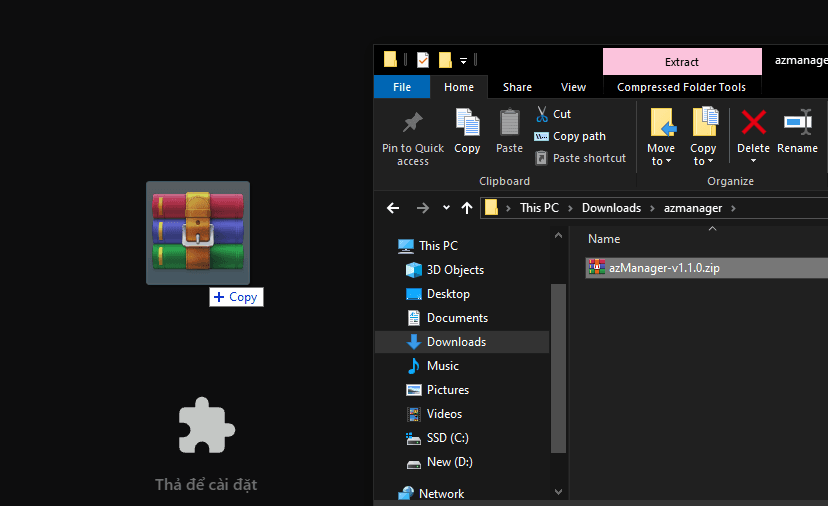
Open your Downloads folder and drag azManager-v1.1.0.zip onto the Extensions page. When you see Drop to install, release the mouse and you’re done.
Pin AzManager to the toolbar
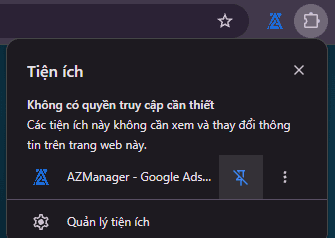
Click the puzzle-piece icon (Extensions) in the top-right corner of Chrome, then click the pin icon next to AZManager. The AzManager icon appears in your toolbar for quick access.
All set!
Click the AzManager icon in your toolbar or the button below to open the dashboard and start monitoring your Google Ads accounts.
Open AzManagerDrag and drop not working?
Some Chrome versions can’t install directly from a .zip file. In that case, unzip the file into a folder, click Load unpacked in the top-left corner of the Extensions page and select that folder. Don’t delete or move the folder after installing.
Still stuck? Contact us on Telegram